Selecting a replenishment strategy
在 Odoo 中,有两种自动补充库存的策略: *重新排序规则*和*按订单生产(MTO)*途径。虽然这两种策略略有不同,但它们都有类似的结果:触发自动创建|PO|或|MO|。选择使用哪种策略取决于企业的制造和交付流程。
术语
Replenishment report and reordering rules
The replenishment report is a list of all products that have a negative forecast quantity.
*订货规则*用于确保产品始终有最低库存量,以便生产产品和/或履行销售订单。当产品库存达到最低水平时,Odoo 会自动生成采购订单,其中包含达到最高库存水平所需的数量。
重新排序规则可在补货报告或产品表单中创建和管理。
Make to order
按订单生产(MTO)*是一种采购途径,每次销售订单确认后,都会创建一份采购订单(或制造订单)草稿,**无论当前库存水平如何*。
与使用重新订购规则补充的产品不同,Odoo 会自动将销售订单链接到由 MTO 路线生成的 PO 或 MO。
重新订购规则与 MTO 的另一个区别是,使用 MTO 时,Odoo 会在确认 SO 后立即生成草稿 PO 或 MO。而使用重新订购规则时,当产品的预测库存低于设定的最小数量时,Odoo 就会生成草稿 PO 或 MO。
此外,只要 PO 或 MO 未确认,Odoo 会在预测发生变化时自动将数量添加到 PO 或 MO 中。
The MTO route is the best replenishment strategy for products that are customized, and/or for products that have no stock kept on-hand.
配置
Replenishment report and reordering rules
To access the replenishment report, go to
By default, the replenishment report dashboard shows every product that needs to be manually
reordered. If there is no specific rule for a product, Odoo assumes the Min Quantity and
Max Quantity stock are both 0.00
注解
For products that don’t have a set reordering rule, Odoo calculates the forecast based on confirmed sales orders, deliveries, and receipts. For products that have a set reordering rule, Odoo calculates the forecast normally, but also takes into account the purchase/manufacturing lead time and security lead time.
重要
Before creating a new reordering rule, make sure the product has a vendor or a bill of materials configured on the product form. To check this, go to , and select the product to open its product form. The vendor, if configured, is listed in the Purchase tab, and the bill on materials, if configured, is found in the Bill of Materials smart button at the top of the form.
The Product Type, located in the General Information tab on the product form, must be set to Storable Product. By definition, a consumable product does not have its inventory levels tracked, so Odoo cannot account for a consumable product in the replenishment report.

To create a new reordering rule from the replenishment report, go to , click Create, and select the desired product from the drop-down menu in the Product column. If necessary, a Min Quantity and a Max Quantity can be configured in the corresponding columns on the Replenishment report page, as well.
To create a new reordering rule from the product form, go to , and select a product to open its product form. Click the Reordering Rules smart button, click Create, and fill out the fields.
Replenishment report fields
The following fields are on the Replenishment report. If any of these fields are not visible, click the ⋮ (additional options) icon on the far right side of the report, then click the checkbox next to a field to make it visible.
Product: the product that requires a replenishment.
Location: the specific location where the product is stored.
Warehouse: the warehouse where the product is stored.
On Hand: the amount of product currently available.
Forecast: the amount of product available after all current orders (sales, manufacturing, purchase, etc.) are taken into account.
Preferred Route: how the product is procured, either Buy, Manufactured, Dropship, etc.
Vendor: the company from which the product is acquired.
Bill of Materials: the bill of materials for the product (if one is configured).
触发器:如何创建补货,可以是 自动`(当 :guilabel:`库存 数量低于 最小数量 时自动创建),也可以是 :guilabel:`手动`(仅在请求补货时创建)。
采购组:产品采购方式的参考编号,如销售订单、采购订单或生产订单。
最小数量:产品的最小可用数量。当库存水平低于此数量时,将触发补货。
:guilabel:`Max Quantity`(最大数量):补货后的可用产品数量。
多个数量:如果产品应按特定数量订购,请输入应订购的数量。例如,如果 多个数量 设置为
5,而只需要 3 个,则会补货 5 个产品。待订购:当前需要的产品数量,如果点击 :guilabel:` 订购一次` 或 自动下单 按钮,则将订购该数量的产品。
UoM:获取产品时使用的度量单位。
guilabel:
公司:获取产品的公司。
默认情况下,待订购`字段中的数量是达到设置的:guilabel:`最大数量`所需的数量。但是,可以通过点击字段并更改值来调整 :guilabel:`待订购 数量。要手动补充产品,请单击 订购一次。
要在:guilabel:补货`页面自动补货,请单击行右侧的:guilabel:`自动订单,该图标由:guilabel:`🔄(圆形箭头)`表示。
单击此按钮后,每当预测库存水平低于重新排序规则设置的 最小数量 时,Odoo 将自动生成草稿 PO/MO。
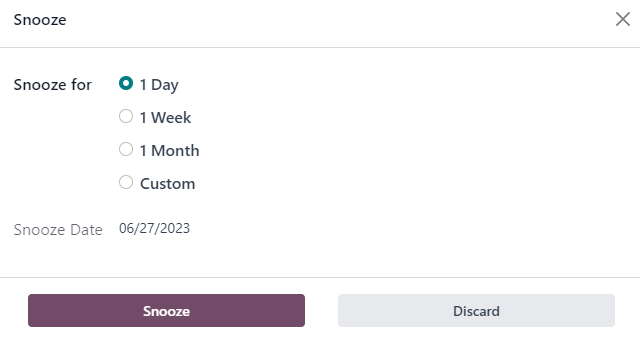
在 补货 页面,点击行最右边的 🔕(休眠) 图标,可在给定时间内暂时停用重新排序规则或手动补货。
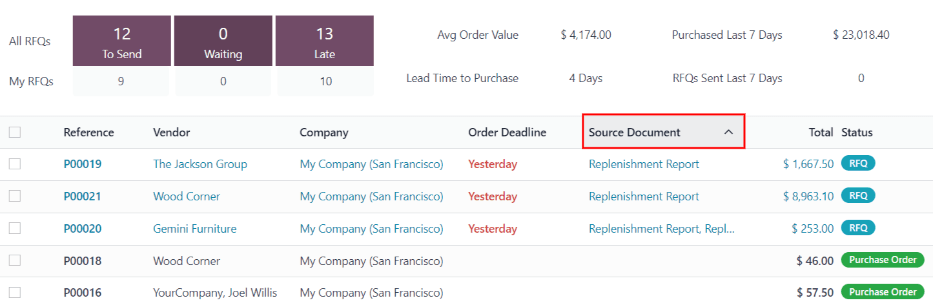
A PO or MO created by a manual replenishment has a Replenishment Report as the source document. A PO or MO created by an automated reordering rule has the SO reference number(s) that triggered the rule as the source document.
Make to order (MTO) route
Since the MTO route is recommended for customized products, the route is hidden by default.
- To activate the MTO route in Odoo:
Go to .
Activate the Multi-Step Routes setting, located under the Warehouse section, and click Save.
Then, go to .
Click on to show archived routes.
Select the checkbox next to Replenish on Order (MTO), and click on .
注解
Activating the Multi-Step Routes setting also activates Storage Locations. If these features aren’t applicable to the warehouse, disable these settings after unarchiving the MTO route.
To set a product’s procurement route to MTO, go to , and click on the desired product to open its product form.
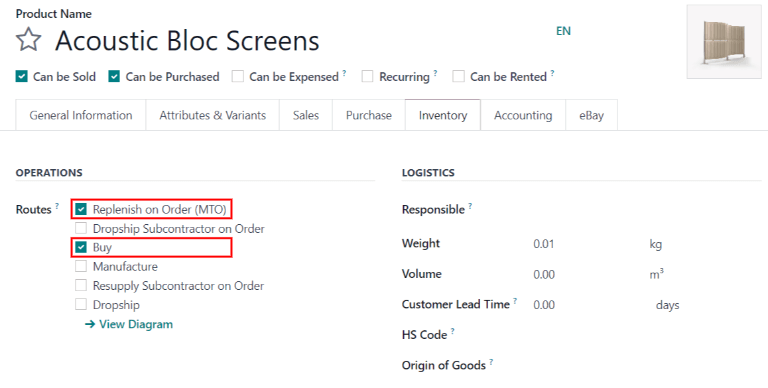
Then, click the Inventory tab, and in the Routes section of options, select Replenish on Order (MTO).
For products purchased directly from a vendor, make sure the Buy route is selected, in addition to the Replenish on Order (MTO) route. Also, make sure a vendor is configured in the Purchase tab of the product form.
For products manufactured in-house, make sure the Manufacture route is selected, in addition to the Replenish on Order (MTO) route. Also, make sure a bill of materials is configured for the product, which is accessible via the Bill of Materials smart button on the product form.
注解
The MTO route cannot be selected alone. MTO only works if the Manufacture or Buy route is also selected.